AI Social Influence & Blogging · From Strategy to Creativity
Video Content
From script to talking avatar video
Bringing Aria to Life
You have a content strategy, hooks that stop the scroll, and a calendar that keeps you consistent. It's time to put Aria in front of the camera!
In this lesson, you'll learn to script content specifically for avatar delivery, create talking videos with HeyGen, adapt content for different platform formats, and build a trust-first publishing checklist for AI-generated content.
Let's get started!

Introducing HeyGen
You're ready to bring Aria to life and record your first AI avatar video. Meet HeyGen!
ThisAI video platform takes an image and a script, then generates a realistic talking video — complete with lip sync, facial expressions, and natural gestures.
But avatar video has unique challenges. Aria can't improvise, react to a funny moment, or adjust her tone mid-sentence on her own.
Everything she says — and how she says it — must be written in advance. That makes scripting the most important skill in your avatar video workflow.
Select all that apply
What do you think makes scripting for an AI avatar different from writing a caption or blog post?
Scripting for Avatar Delivery
Writing for Aria isn't the same as writing a caption. You write words that Aria will perform aloud. Therefore, the words need to flow naturally when spoken. In video generator tools such as HeyGen, pacing is controlled through punctuation rather than written stage directions.
practice preview
Interactive practice
Fill in the blank
Use Claude to draft a short video script for Aria. Focus on building natural pacing through punctuation.
HeyGen reads your script exactly as written. So if you want Aria to make a pause, and you type "pause," Aria will literally say the word "pause." Instead, pacing is built into the script itself:
- Commas (,) create short natural breaks
- Periods (.) create longer pauses with a downward inflection
- Ellipses (...) add a trailing, reflective pause
- Short sentences naturally slow the pace
- Hyphens (-) separate syllables for clearer pronunciation
Preparing Aria's Image Library
Before you open HeyGen, you need the right images. HeyGen gives you two options:
- If you’re using Avatar IV for quick videos, one strong photo is enough.
- If you're creating a reusable Photo Avatar(Custom Photo Avatar), upload 10-15 images — it usually improves likeness and consistency.
Use Midjourney to generate a set of Aria images — same Omni reference tool (--oref), but different compositions. Include:
- A mix of close-up and medium shots
- Different expressions: calm smile, neutral, slight laugh
- Varied angles: front-facing, slight three-quarter turn
Save all of them — you'll upload the full set to HeyGen as your Photo Avatar.
Now, as you're all set, let's proceed to HeyGen and walk through the setup step-by-step!
This is what a typical HeyGen workflow for AI avatar creators looks like:
- Upload Aria's image
- Paste your script
- Select a voice
- Generate
The result is Aria speaking directly to your audience — no camera, no filming, no studio.
Step 1: Create Aria as a Photo Avatar
In HeyGen, go to Avatars → New Avatar → Upload Photos.
Upload your set of 10-15 Midjourney-generated images of Aria. HeyGen will process the images and build your custom Photo Avatar.
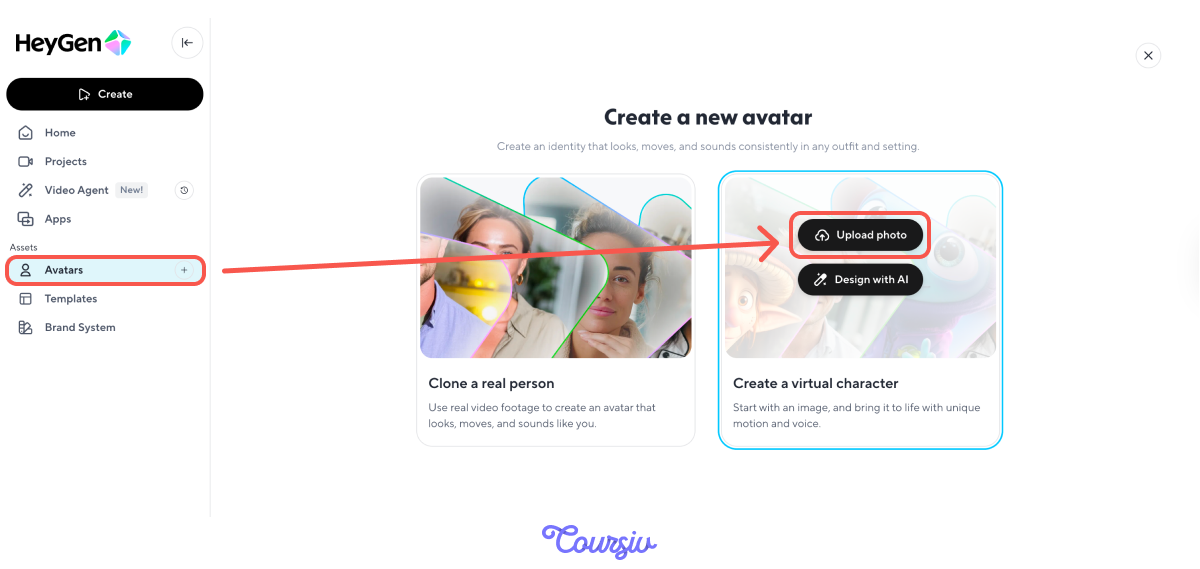
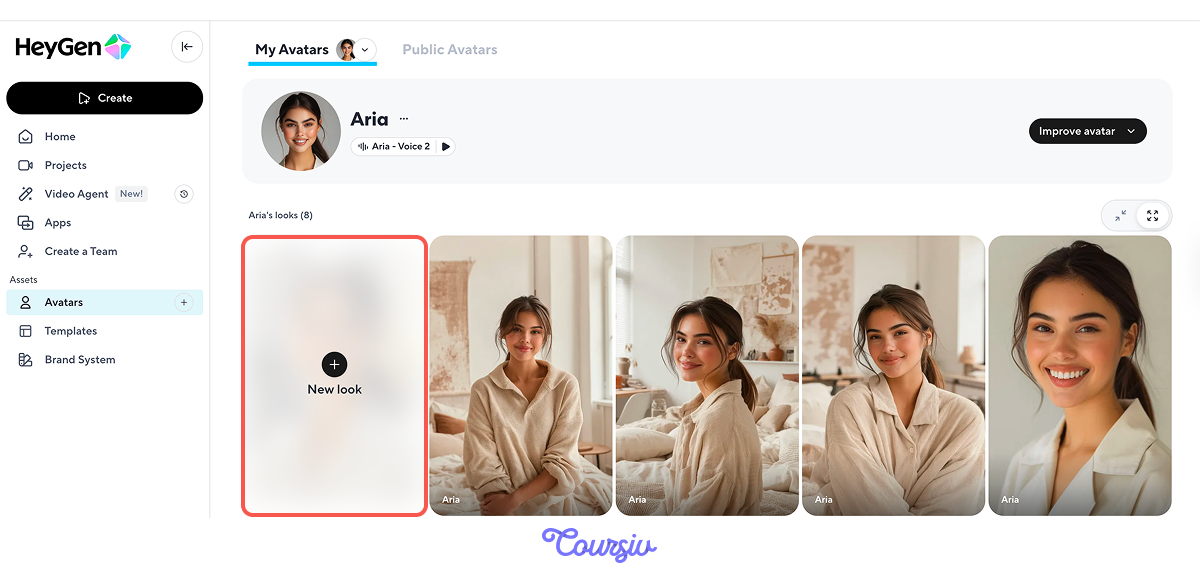
Once created, you can generate additional Looks — different outfits, poses, and backgrounds — through text prompts, without uploading new photos.
Choose a Voice That Matches the Brand
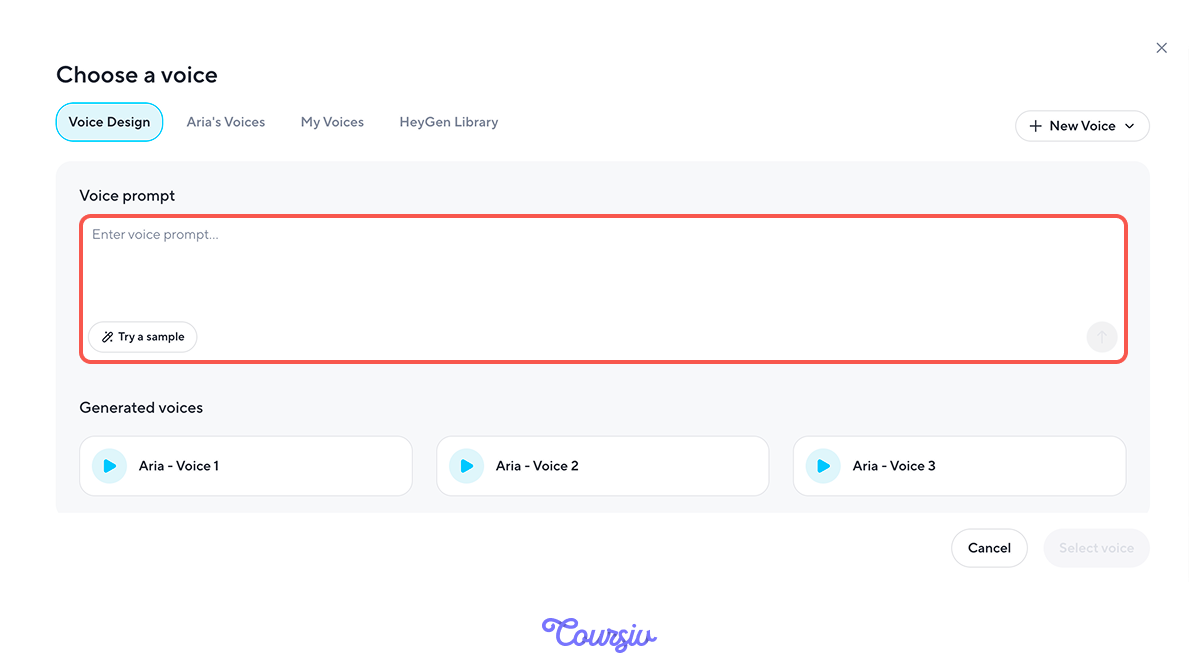
After you've uploaded the photos, it's time to give Aria a voice.
You can either choose from the HeyGen library or create a voice specifically for Aria. The voice that will reflect the brand voice, support and strengthen positioning, and be the best fit for the content delivery.
practice preview
Interactive practice
Fill in the blank
Use the HeyGen "Voice Design" tool to generate a unique voice specifically for Aria.
Here's what you got!
Step 2: Proceed to Your First Video
After creating your avatar, let's shoot your first video!
Open the "Create in AI studio" tab to start matching your avatar with your script.
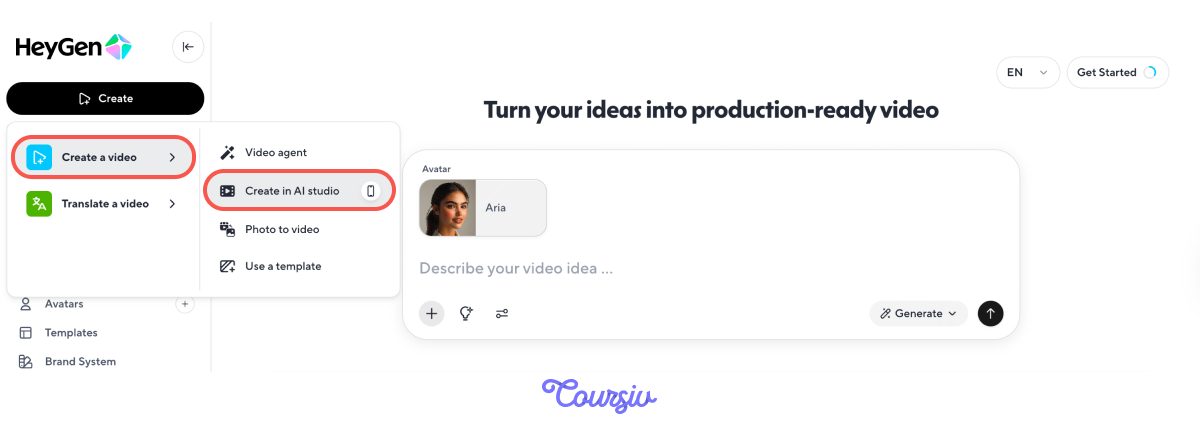
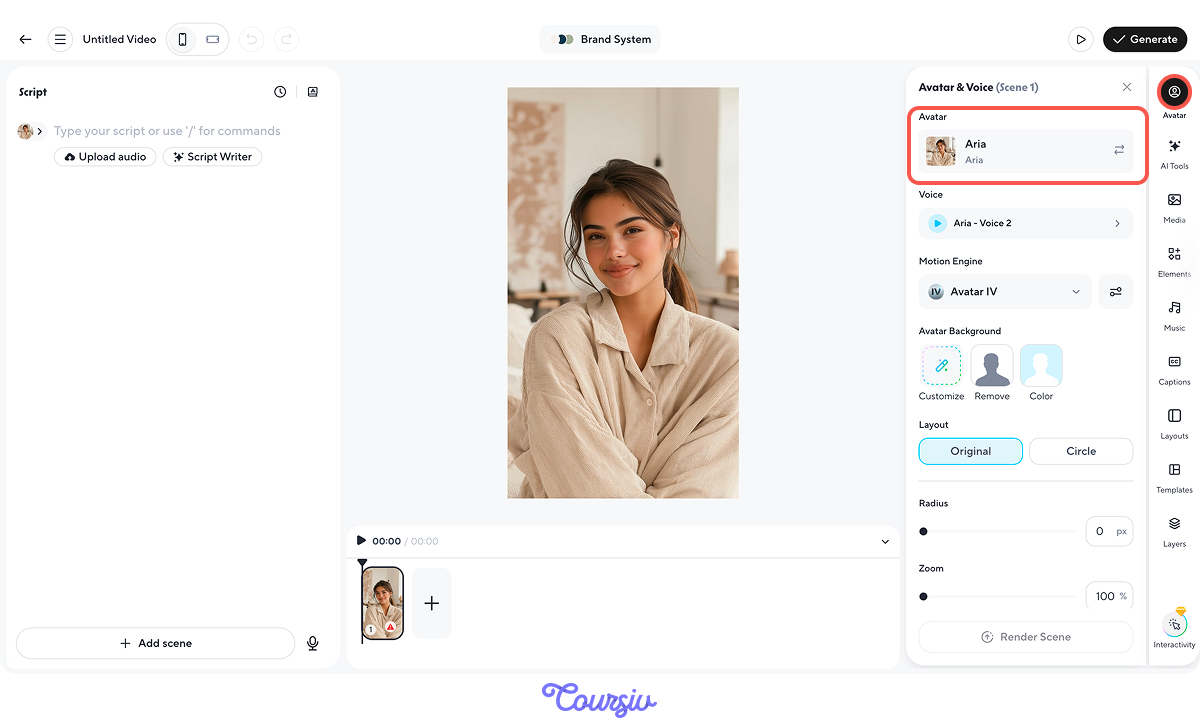
Step 3: Select Aria and Set the Scene
On the right panel, click the "Avatar" icon and select the Photo Avatar you just created. Aria will appear on the canvas.
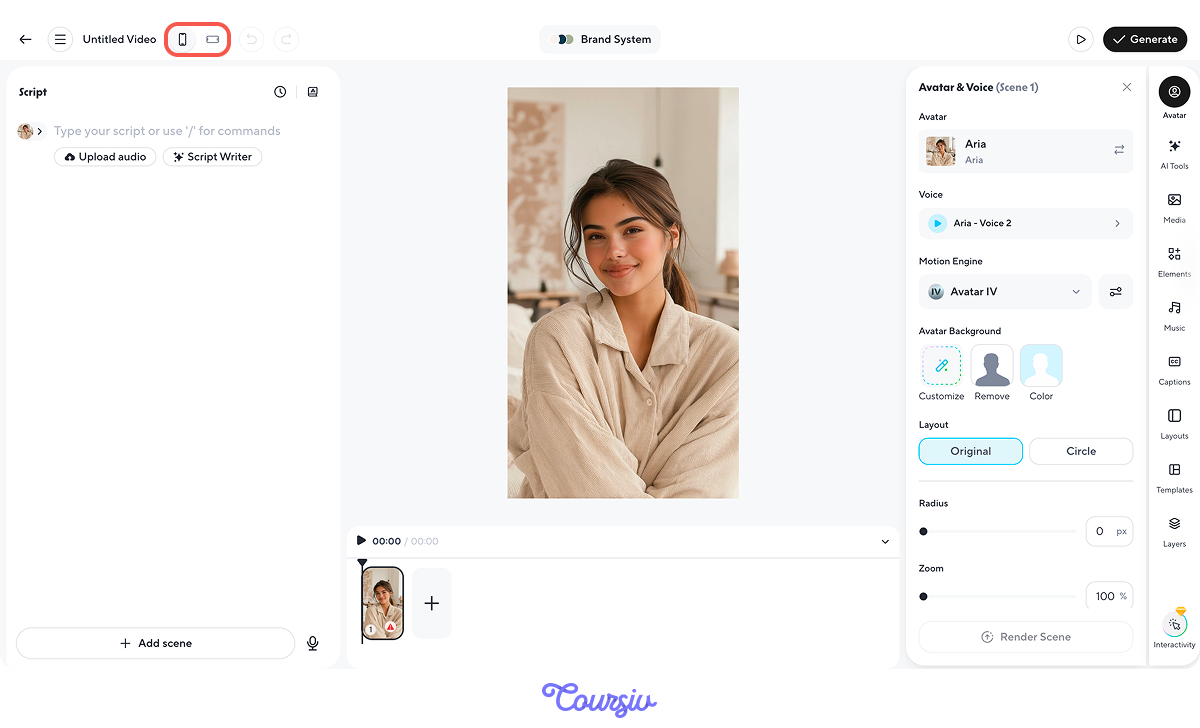
Next, choose your aspect ratio. You set this when you first create the project — Portrait (9:16) for Instagram Reels, TikTok, and Stories, or Landscape (16:9) for YouTube. For short-form social content, go with portrait.
Choose your aspect ratio early so you don’t have to reformat later — but you can still change it in the editor if needed.
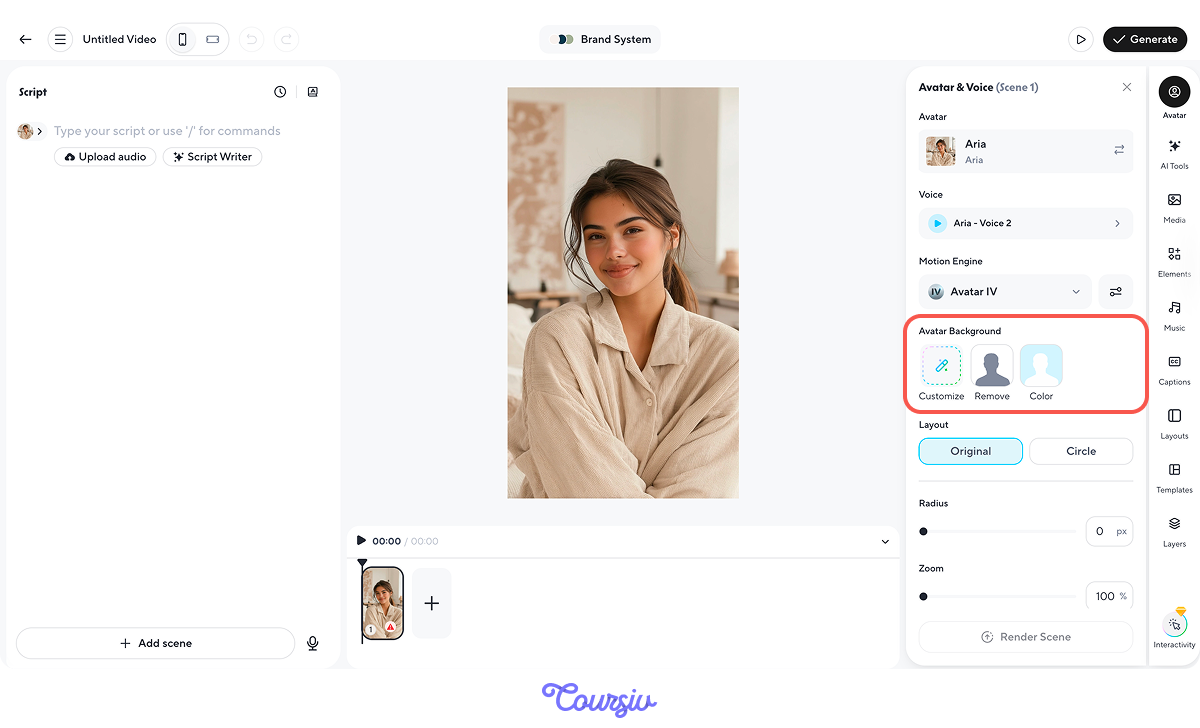
Then set your background. Keep it clean and on-brand — a solid color, subtle gradient, or simple stock image. The background panel is on the right side of the editor.
If your generated image already has a minimalist background — you can use it as it is.
Step 4: Paste the Script and Adjust Pacing
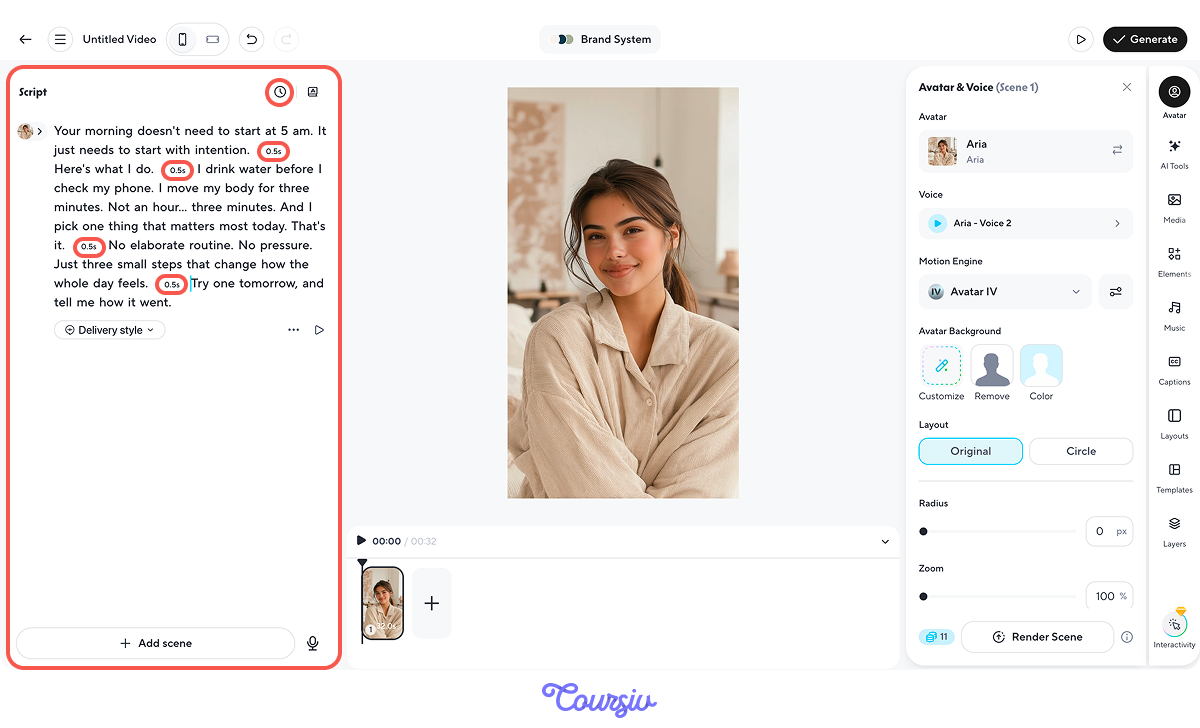
The script panel is on the left side of the editor. Paste the script you wrote with Claude earlier. HeyGen recommends keeping each script section under 2,000 characters for best results.
To fine-tune pacing beyond punctuation, use the "Pause" button in the script editor. Place your cursor where you want a break, click Pause, then adjust the length using the "+" and "–" icons in 0.5-second increments. Add pauses between your hook, value section, and CTA for natural breathing room.
Step 5: Assign the Voice
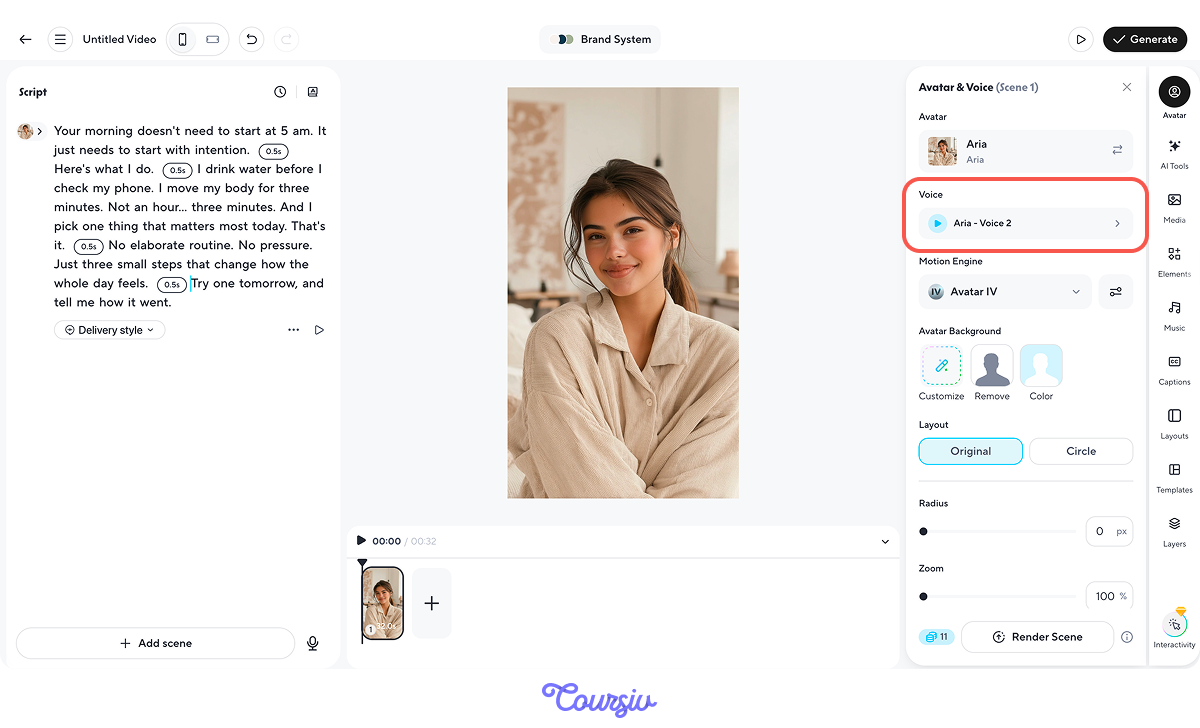
Click the voice selector in the avatar panel to assign the custom voice you designed earlier. Check that the voice matches the script's energy. A calm, warm script paired with an energetic voice will feel off.
Use the Play preview to listen before generating. If something is mispronounced, you can double-click the word in the preview to set a custom pronunciation. HeyGen saves it to your Brand Glossary for future videos.
Step 6: Add Captions
Since many people watch influencer videos on mute, a caption is a must. In the left toolbar, click the "Captions" icon and select a style. HeyGen auto-generates word-synced captions from your script, so they appear in time with Aria's speech.
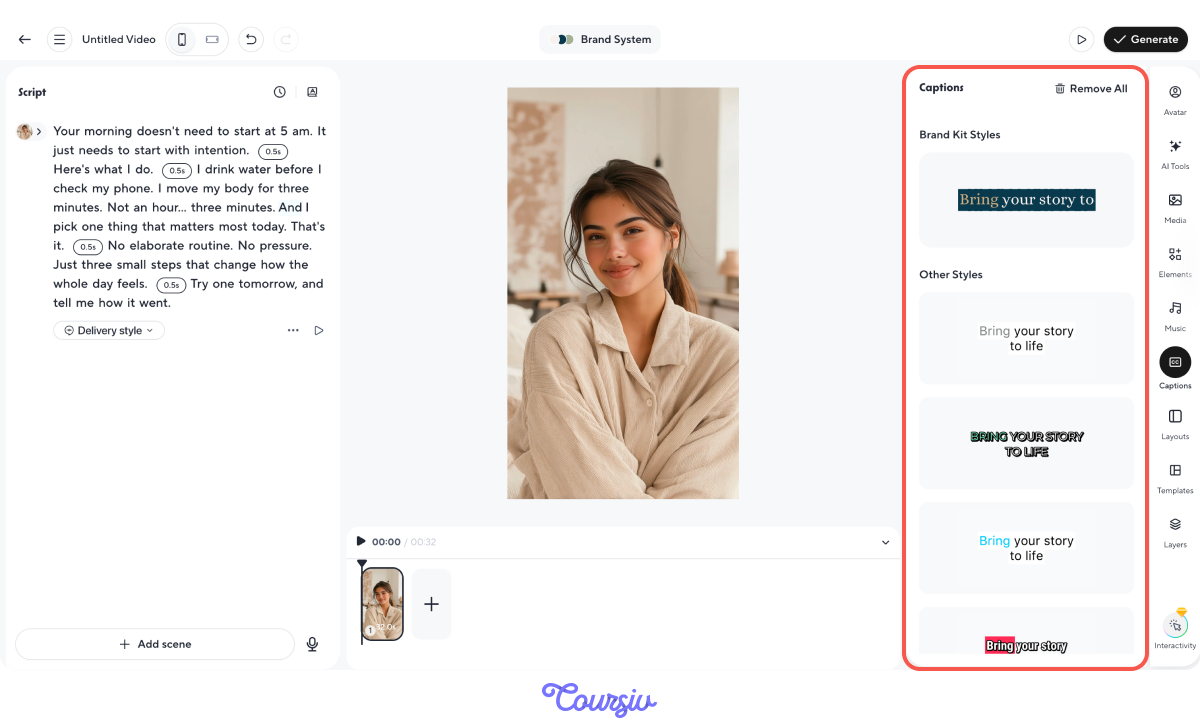
Choose a clean, readable caption style that fits your brand. You can customize font, size, color, and position. Bold captions on short-form video increase watch time significantly.
Review Like a Producer
Finally, render your scene and do a quick quality pass: check awkward pauses, movements, lip sync. If anything feels off, adjust the delivery cues or pacing and regenerate before exporting.
Use Scenes to Control Pace
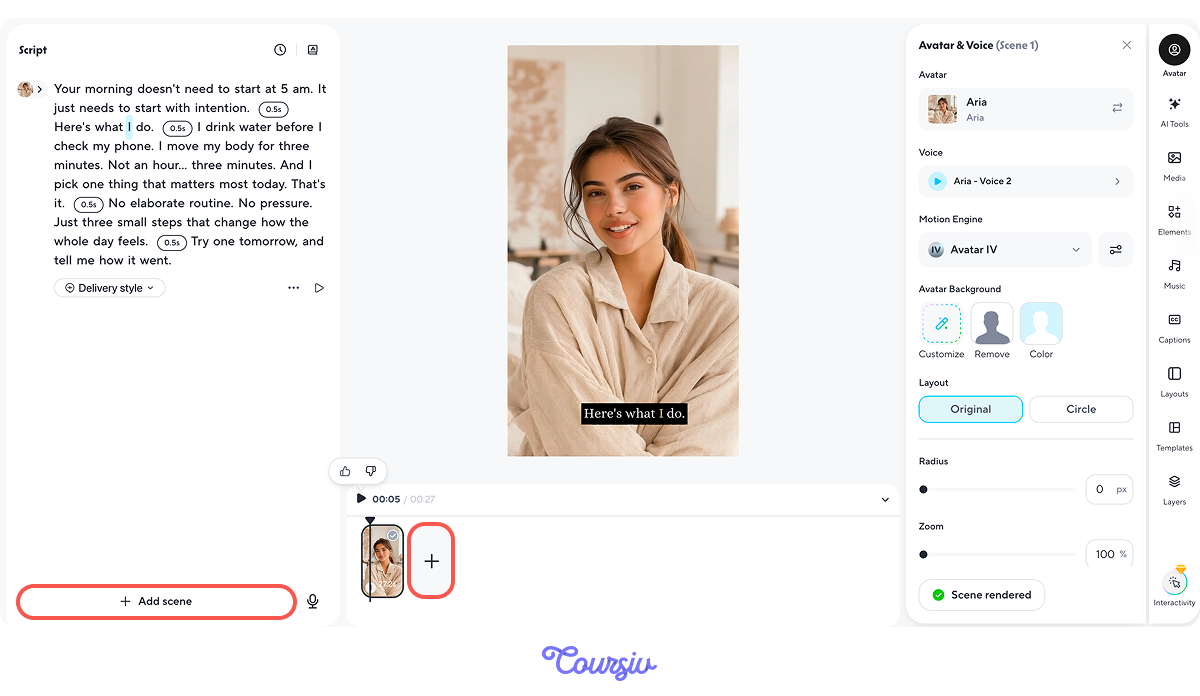
In HeyGen AI Studio, a video is built from scenes — each scene is one "card" with its own script and canvas. Use scenes whenever you need a clean break: a new idea, a new example, a visual switch, or a stronger hook.
If you need a new scene, add it with the "Add Scene" button. Duplicate a scene when you want the same layout with new lines, and reorder scenes in the timeline to tighten flow.
Keep short-form scenes brief so each one lands one point, then use transitions only when a cut feels too abrupt.
Aria's first video!
When your content features an AI avatar, your audience needs to know about it. It's now the rules. Both TikTok and Instagram require creators to label AI-generated content that depicts realistic people or scenes.
Moreover, the EU's AI Act requires mandatory labeling of AI-generated content across all platforms. Getting this right from day one protects your brand and your reach.
Choose one
Aria's latest Reel is gaining traction. A commenter writes: "This can't be a real person — the movements look AI-generated." Which response builds more long-term trust with your audience?
Before publishing any AI-generated video, confirm:
- Disclosure: Is it clear that this content features an AI avatar? (bio statement, caption note, or platform AI label)
- Value: Is the content genuinely helpful, regardless of who delivers it?
- Accuracy: Have you personally verified any claims, tips, or recommendations?
- Voice: Does the video sound like Aria — consistent with your brand guidelines?
- Platform compliance: Does it meet the platform's current AI content labeling requirements?
Aria Comes Alive
Look at what you've accomplished! Now you can:
- Script video content with delivery cues that make Aria sound natural and engaging
- Create talking-head videos in HeyGen — no camera, no studio!
- Build with trust, following a checklist that protects your brand every time you publish
And that's it for Unit 1! You have a brand identity, an audience persona, a content strategy, and now a video production workflow for Aria.
In Unit 2, you'll take everything you've built and start growing.
Your foundation is solid. Let's scale it!