Claude · Claude Essentials
Create With Artifacts
Build interactive outputs
Build, Don't Just Ask
Imagine describing an idea and watching it appear instantly as a webpage, form, or interactive dashboard.
That's what Artifacts make possible. Rather than giving you text alone, Claude can generate working outputs that you can view, edit, and refine right inside the chat.
And the first version is only the beginning — the real magic happens as you iterate, improve, and transform rough ideas into polished results. Let's see how it works!

More Than Just Text
You may have heard that AI tools can help you design things like websites, forms, dashboards, or even simple apps. And Claude can do all of that with Artifacts.
They let Claude show you the result right inside the chat — live, visual, and ready to refine on the spot.
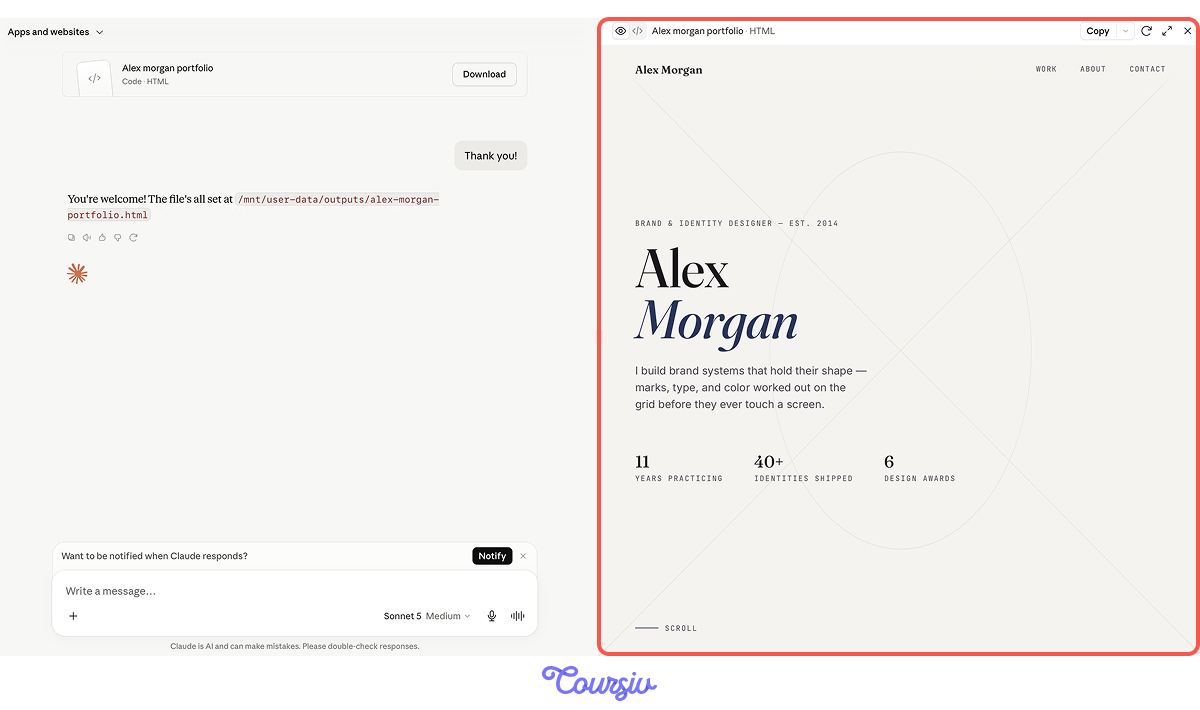
A Familiar Loop
To see why this matters, try asking another AI to build something simple. Likely, it will generate the code → you have to copy it and open it somewhere else → check how it looks, adjust, and repeat.
The idea works, but the process is slow and scattered.
Choose one
What do you think is the main problem in this workflow?
Artifacts remove that friction. Instead of copying code back and forth, Claude shows you the result in a visual window right next to your conversation.
You ask directly in the prompt, and the actual form, page, or document appears. And if something needs changing, you prompt Claude again and watch it update.

practice preview
Interactive practice
Fill in the blank
Let's see how Artifacts work and build your first one!
The best Artifacts start with four things:
- What you're building
- Who it's for
- What it should look like
- Any important requirements
Knowing how to request an Artifact is only part of the equation. Just as important is knowing when an Artifact will help — and when a regular chat response is the better choice.
Before diving deeper into how Artifacts work, let's explore where they shine and where they don't.
How to Access Artifacts
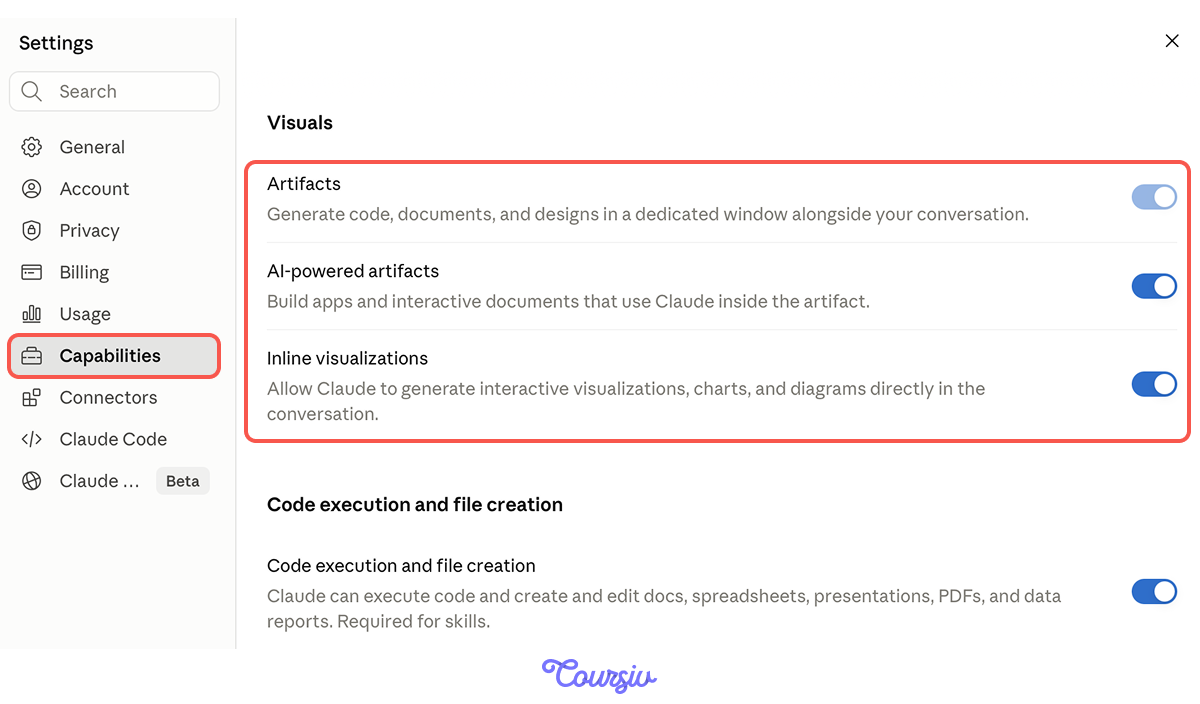
Good news: on most accounts Artifacts are already on, and Claude opens one automatically whenever a visual or interactive result would help. They work on every plan, from Free to Enterprise.
- AI-powered artifacts build apps and interactive documents.
- Inline visualizations generate interactive visuals, charts, and diagrams.
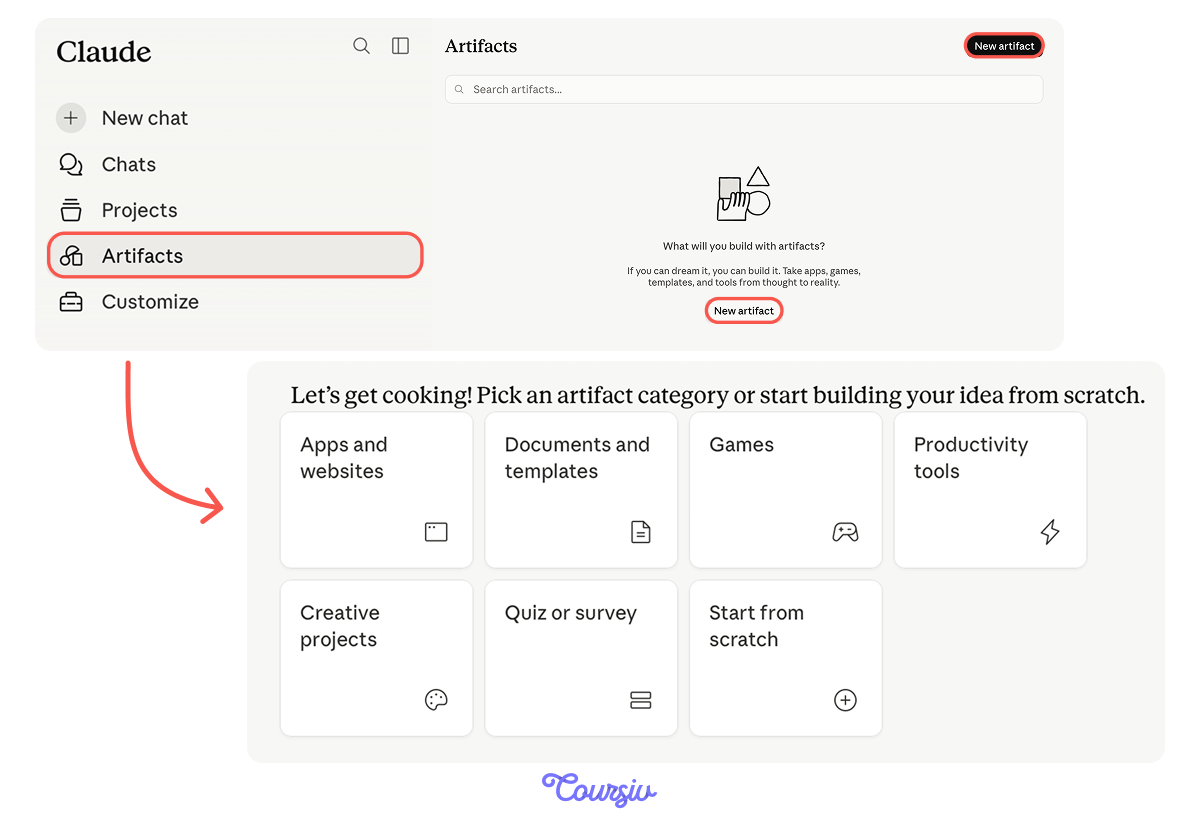
You can also access Artifacts from a separate tab on the left. Here, Claude keeps all the Artifacts you'd built earlier. Or you can click the "New artifact" button to create a completely new one.
How Artifacts Appear in Claude
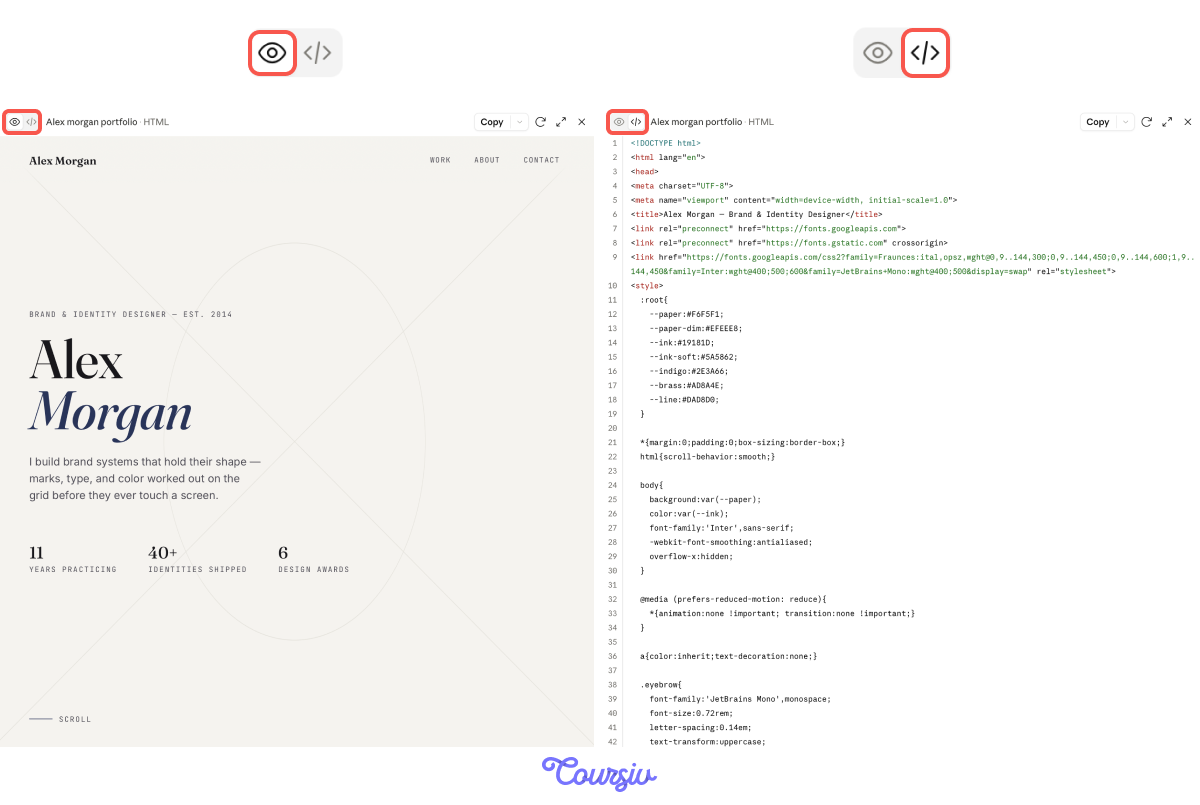
Once the Artifact is created and you start working with it, it has two main viewing modes:
- Preview shows how the result looks or behaves
- Code shows the underlying source (when applicable)
What'll matter more for us in this lesson is the Preview mode.
Scenario: Promo Website
Remember the catering business website artifact we quickly crafted at the beginning?
Let's develop it further now and see how Claude builds and iterates on it!

Select all that apply
At first sight, the design looks polished, but it's still generic — it could belong to any business. Which details does this catering site need before it's ready to show real clients?
Nice job! This way, Claude creates something that feels more personal. Notice how it tweaks the fonts, layout, and copy, making it more personal and unique.
Choose one
The first draft is ready. What do you think your next step should be with this website?
Editing Without Breaking Everything
Good news is, Artifacts are designed for targeted edits: you can highlight a specific section — text, code, or layout — and ask Claude to modify only that part. No need to rewrite or rebuild, break working parts, or waste usage limits.
Let's try adding this image of signature bacon wraps to awake interest and stand out more.

practice preview
Interactive practice
Fill in the blank
Complete the prompt alongside the attached image to see how you can ask Claude to tweak only the details you're targeting at.
See how that works? You didn't start over or rebuild the whole page.
One focused request, and Claude updated just the part that needed attention, while keeping everything else intact!
As you can see, Artifacts shine when ideas evolve. You can:
- Experiment with layouts
- Test styles
- Explore alternatives
- Compare versions
practice preview
Interactive practice
Put in order
Let's check — arrange the steps of working with Artifacts in the correct order.
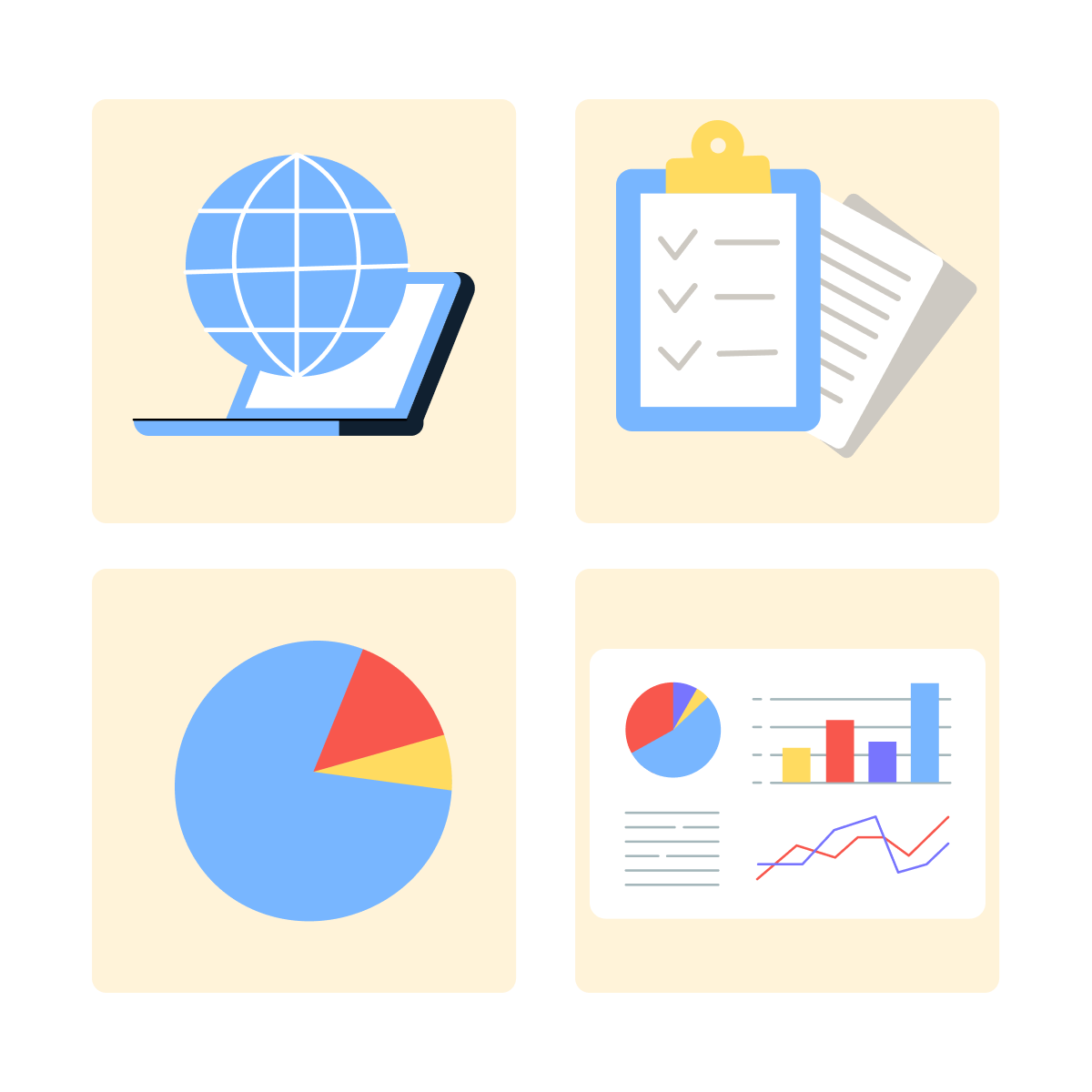
With workflow, you can create different things in different powerful output formats. Claude picks the best fit for what you're building:
- Interactive web elements (forms, calculators, pages)
- Documents and formatted text
- SVG graphics and diagrams (flowcharts, icons, illustrations)
- Dashboards and data visualizations
- AI-powered Artifacts — tools with Claude built inside them, so the finished thing can think, not just display or repeat a preset pattern. Like a study-buddy that writes fresh quiz questions on any topic, or a feedback tool that replies in plain language — not a fixed result, but one that keeps producing.
Great Job!
To wrap up, you now know how to:
- Recognize when an Artifact is needed
- Access and manage Artifacts in Claude
- Iterate safely and precisely
- Move from ideas to usable outputs
Artifacts turn Claude into more than a conversational partner — they make it a workspace for building.
Next, you'll learn how to guide Claude's reasoning and creativity more deliberately with different tool-specific prompting techniques.
This is important because knowing what Claude can do is only half the picture. The real skill is learning how to ask it right, and that's what you're about to explore. Stay tuned!