Lovable · Lovable Essentials
Editing with Chat
Refine your website using conversational chat editing
Edit Like You're Texting a Friend
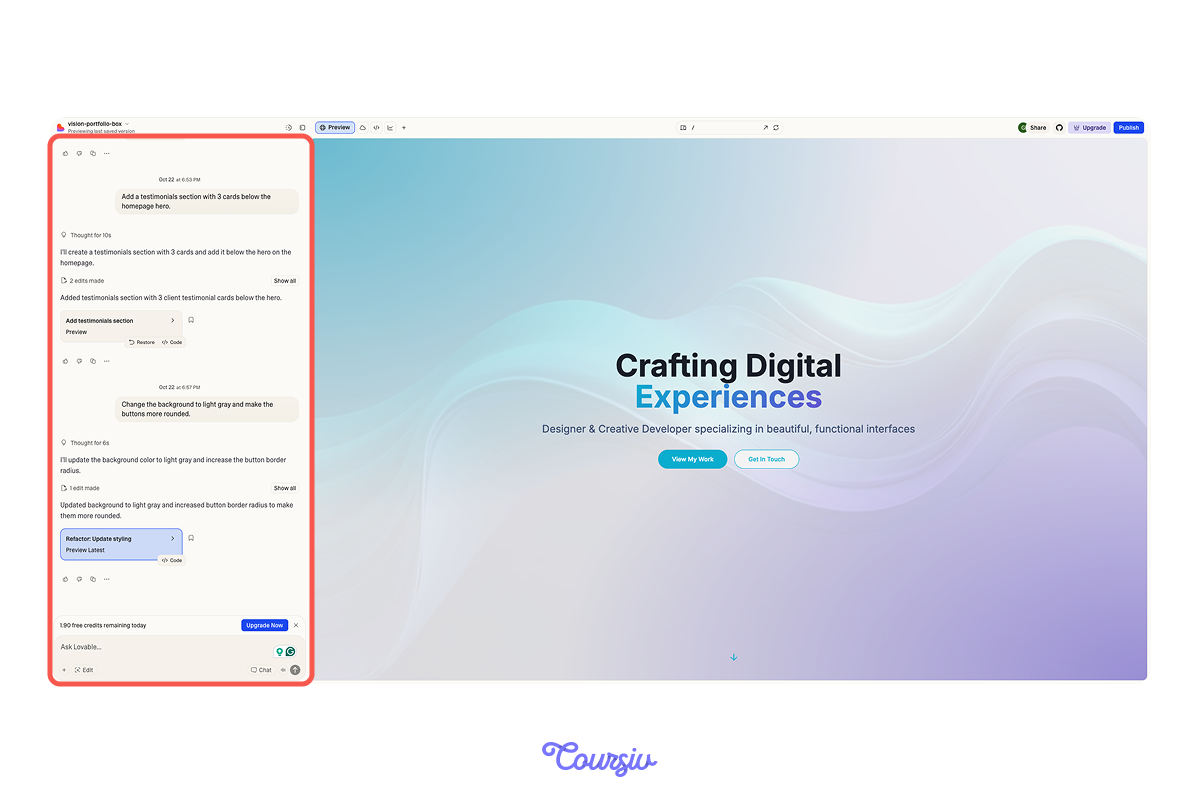
Previously, you've seen how Lovable turns your words into edits. In this lesson, you'll take it further by learning how to edit and refine your site through simple descriptions.
Choose one
Let's recap first. What is the easiest way to edit your Lovable website?
Main Rule
See something you want to change? Describe the adjustment in a prompt.

Simple Style Changes
The easiest place to start is with visual tweaks — things like colors, spacing, fonts, or button styles.
For instance, you could say:
- "Make the header background navy blue"
- "Increase the spacing between sections"
Lovable will apply these changes instantly, and you can see the results in your preview right away.
practice preview
Interactive practice
Fill in the blank
Complete this prompt to change button styling.
Adding New Sections
Want to add content areas? Describe the section type and where it should go. For example:
- "Create a pricing table with three tiers"
- "Insert a contact form at the bottom of the page"
Lovable will create appropriate layouts with placeholder content you can customize further.
practice preview
Interactive practice
Fill in the blank
Complete this prompt to add a new content section.
Changing Layouts
The next step is rearranging how the content appears on your page.
This includes moving sections around, change column arrangements, or adjust how elements are positioned.
For this, you can use prompts like:
- "Display the services in three columns"
- "Move the pricing section above testimonials"
- "Make the images side-by-side instead of stacked"
No need to understand any technical stuff like grid systems or flexbox — just describe what you see in your mind.
practice preview
Interactive practice
Fill in the blank
Modify your page layout by completing the prompt.
Updating Content
Another thing that you can do is replace placeholder text with your actual content.
Change headlines, update descriptions, or modify button labels through simple prompts.
You might say:
- "Change the hero headline to 'Transform Your Ideas Into Reality'"
- "Update the CTA button to say 'Start Free Trial'"
These content changes will help you refine your message without touching any code.
practice preview
Interactive practice
Fill in the blank
Complete this prompt to replace placeholder text with your actual copy.
See? From style changes to content updates you can shape your site through simple prompts with Lovable.
Fine-Tuning Details
Once the big pieces are in place, you can refine smaller details — font sizes, spacing, border styles, or hover effects.
These finishing touches add up to a polished, professional result.

Practice Time
Now that you understand each aspect of conversational editing, let's test this knowledge quickly.
practice preview
Interactive practice
True / False
Decide whether this prompt gives Lovable enough detail to work with.
practice preview
Interactive practice
Put in order
Now, arrange these editing steps in the most efficient order.
Good Job!
You've learned conversational editing and understand how to refine your project through natural language.

- Use prompts to make style changes, add sections, adjust layouts, and update content
- Refine through iteration — start broad, then get specific through additional prompts
What's Next?
Next, you'll learn how to bring your own designs into Lovable — importing mockups from Figma so your site matches your exact vision. Let's go!